QA teams can execute tests on a vast array of real mobile devices available in the market on the AWS Device Farm.
Why use the Device Farm?
While emulators are fast, testing on real hardware is the only way to ensure true production readiness; testing on "Real Devices" is a higher tier of QA than "Virtual" testing. However, solving the "Mobile Fragmentation" issue with many QA teams struggling to buy and maintain dozens of physical handsets is challenging. AWS Device Farm solves this by providing "Real Device" access in the cloud. A major selling point of AWS Device Farm is that these are physical, real devices hosted in an AWS data center, not virtual emulators. Furthermore, you can simulate different network speeds (3G, 4G, Edge), which is a critical mobile QA task.
Phase 1: Environment Setup
Create a Device Farm Project
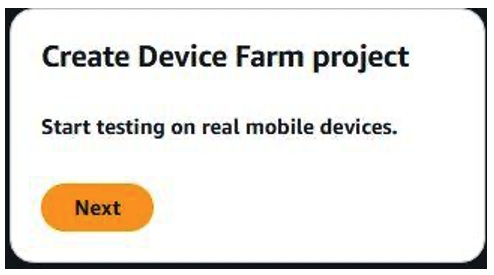
Login to your AWS account and navigate to the URL for the AWS Device Farm service at https://aws.amazon.com/device-farm/. To create a new project, click on Next in the dialog Create Device Farm project.
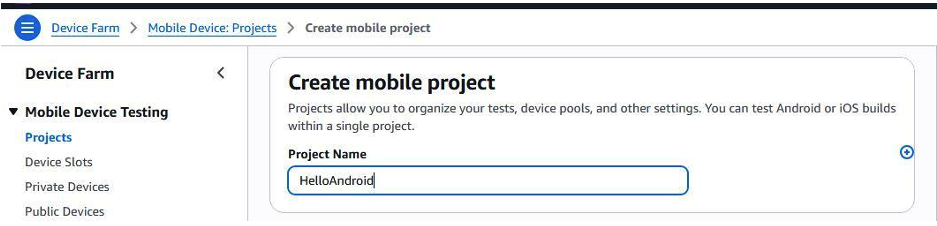
Specify the project name in the Create mobile project dialog.
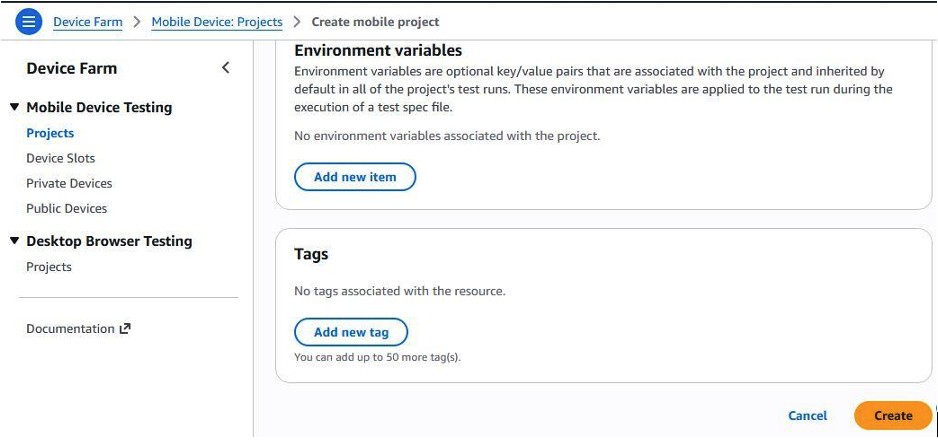
Scroll down and click Create to create a project with default settings.
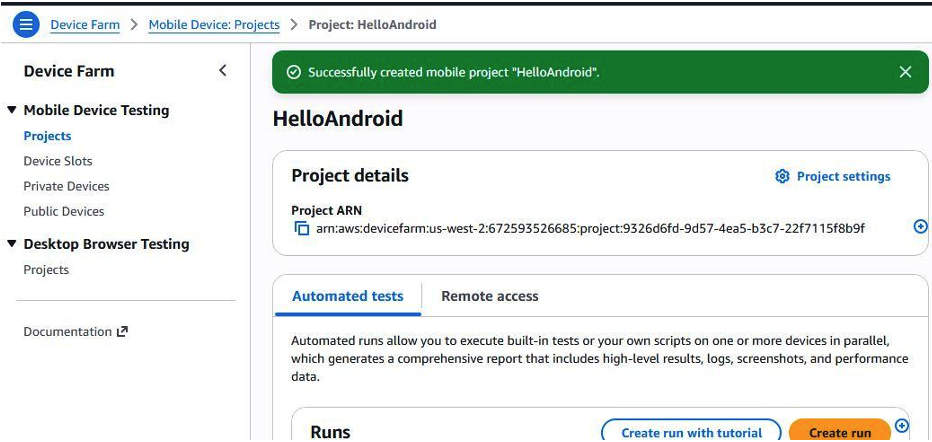
The system will then initialize the new mobile project.
Phase 2: Automated Testing
Create an Automated Run
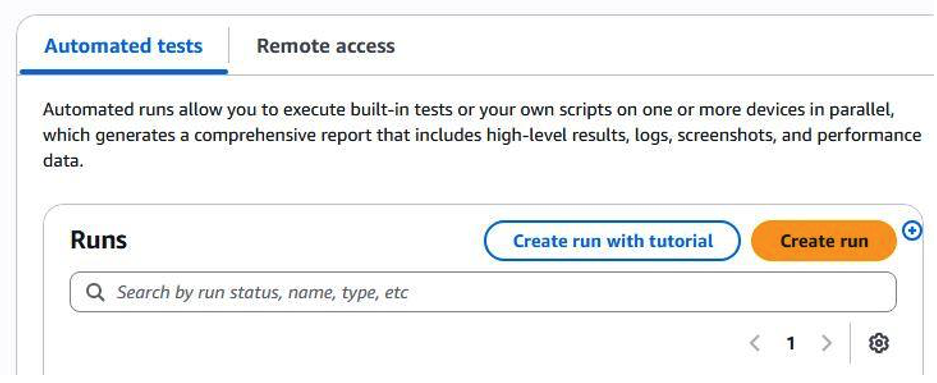
To run automated tests on one or more mobile devices select the Automated tests tab. Click on Create run.
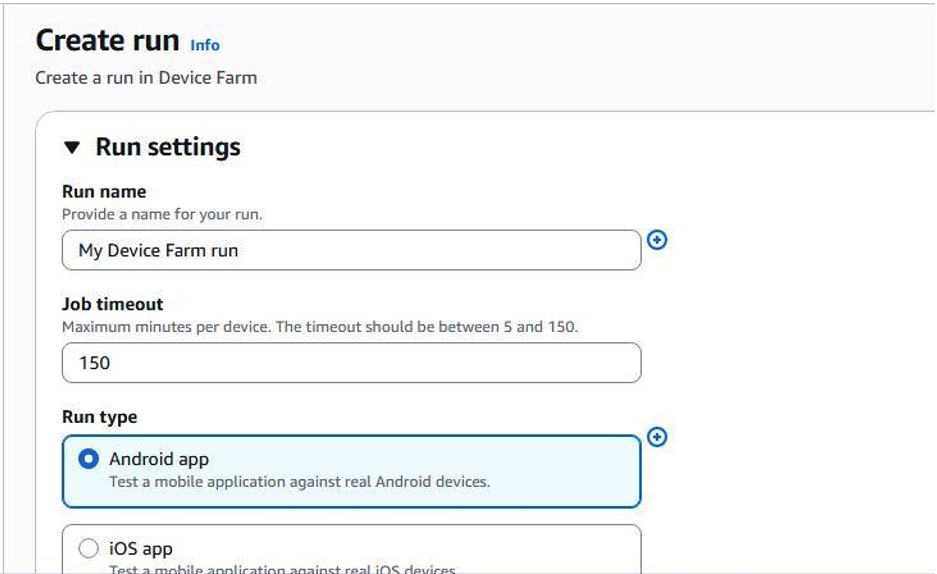
In the Create run dialog specify a run name. Select a run type from three choices: Android app, iOS app, and Web app. For example, select Android app to test a mobile application against real Android devices.
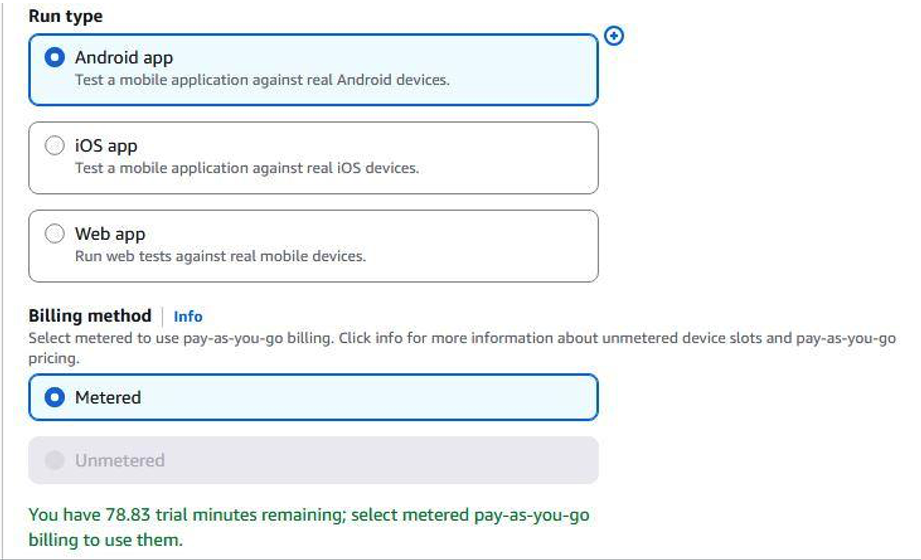
If you have trial minutes, you can scroll down and select the Billing method as Metered.
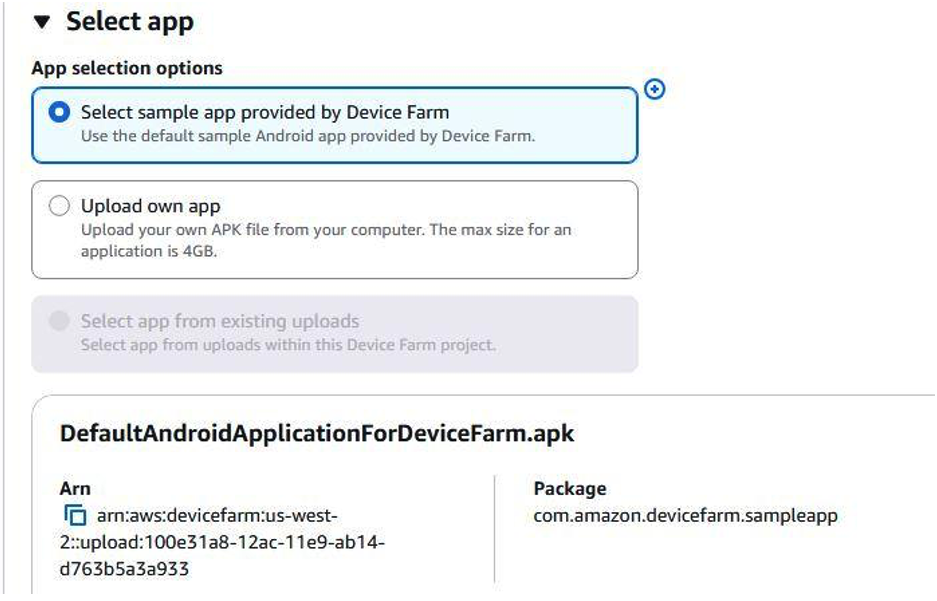
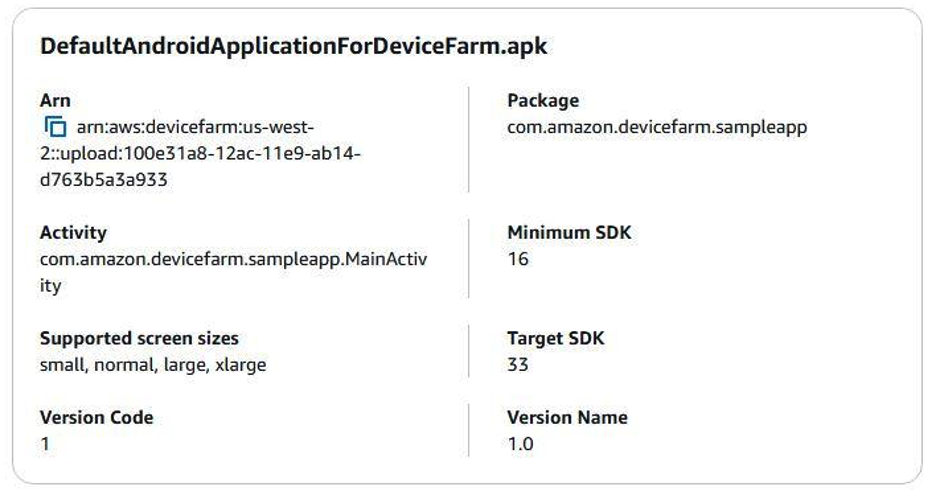
You have the option to upload your own app, or select a sample app. To upload your own app, the limit on the APK size is 4 GB. For a demo, choose the option Select sample app provided by Device Farm.
Scroll down to find the package name, minimum SDK, target SDK, activity name, supported screen sizes, version code, and version name.
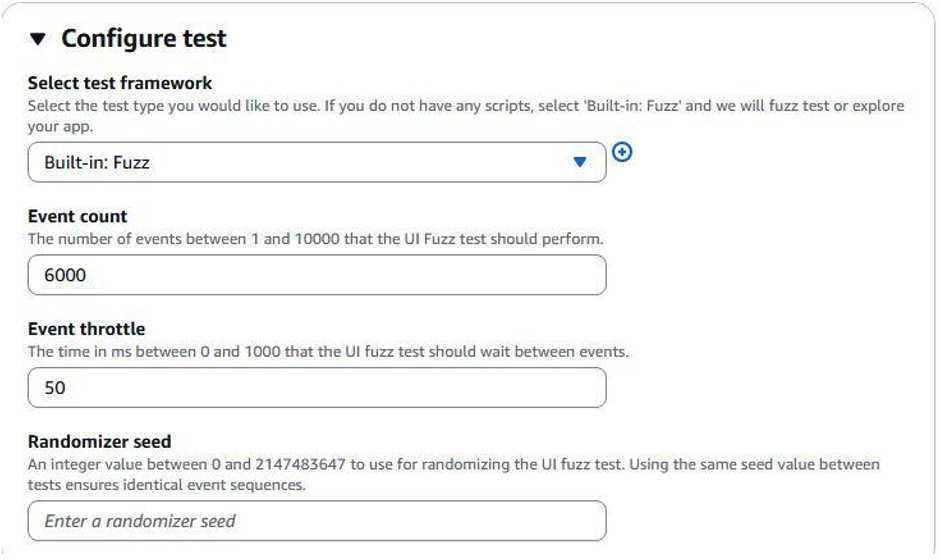
Next, configure a test. Select the Built-in: Fuzz test framework.
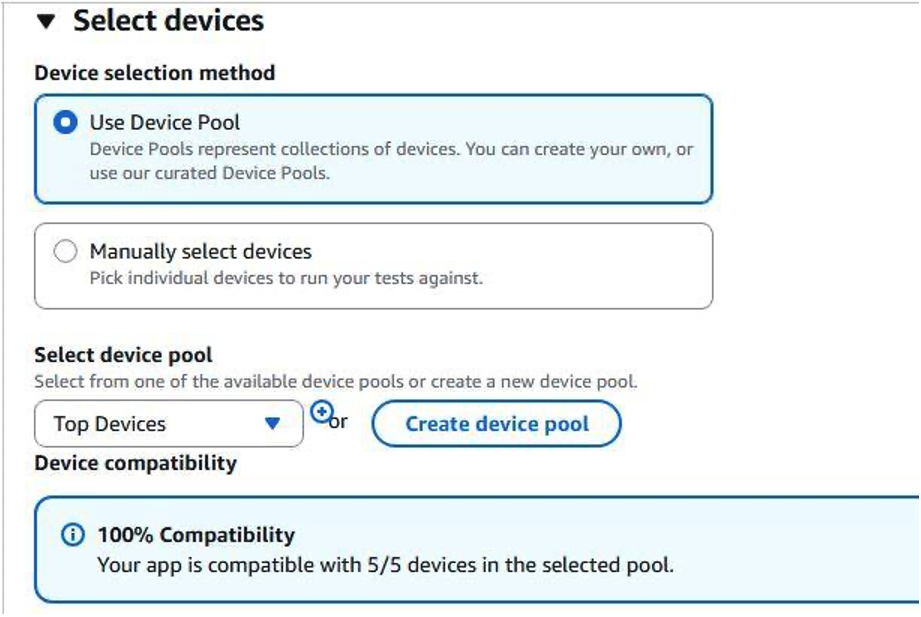
Next, select devices to run the sample app on. Select the option Use Device Pool with the default device pool called Top Devices selected.
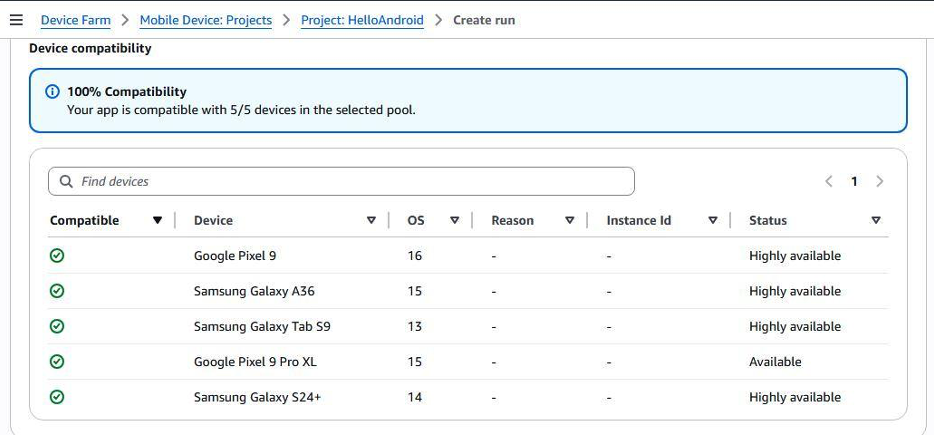
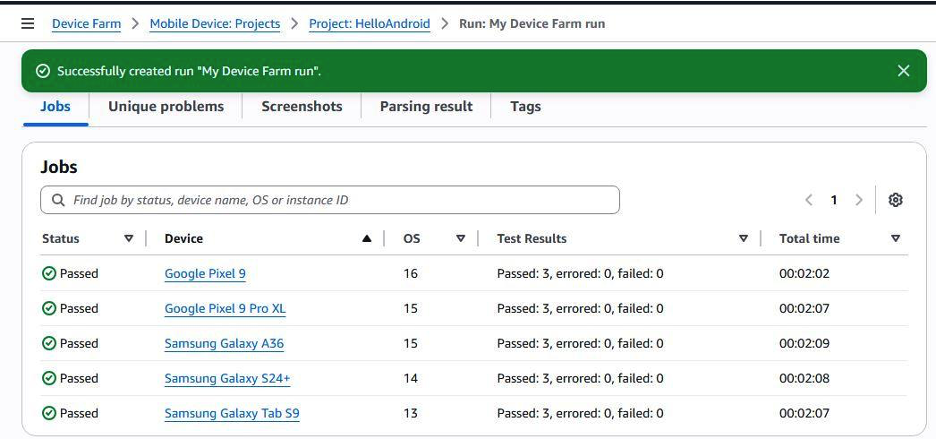
The project will list the compatible devices, for example the five devices listed for the sample app.
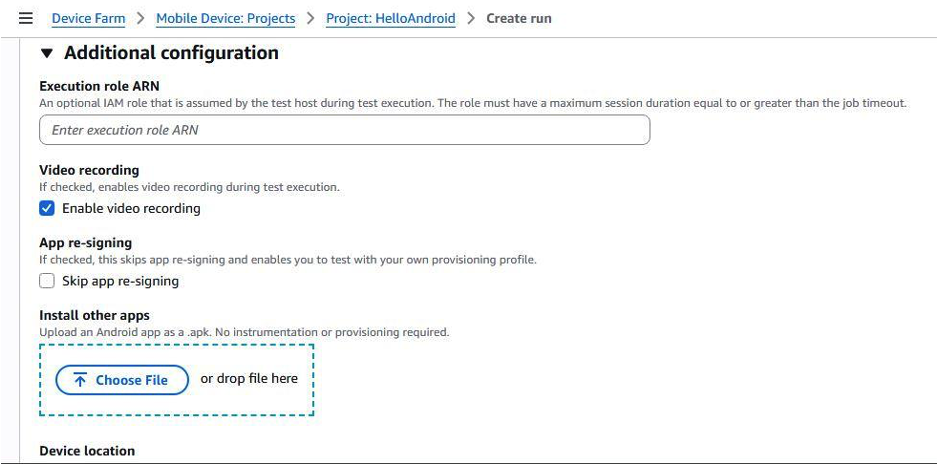
Under Additional configuration, you have the option to enable video recording, and install other apps in addition to the sample app.
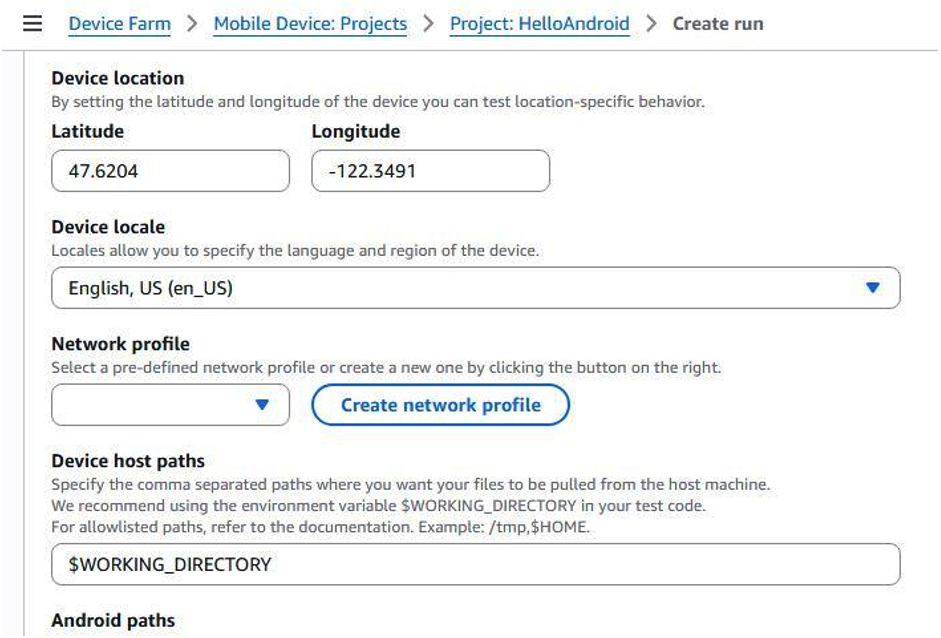
To test location-specific behavior, specify the device location as Latitude and Longitude, and select the device locale.
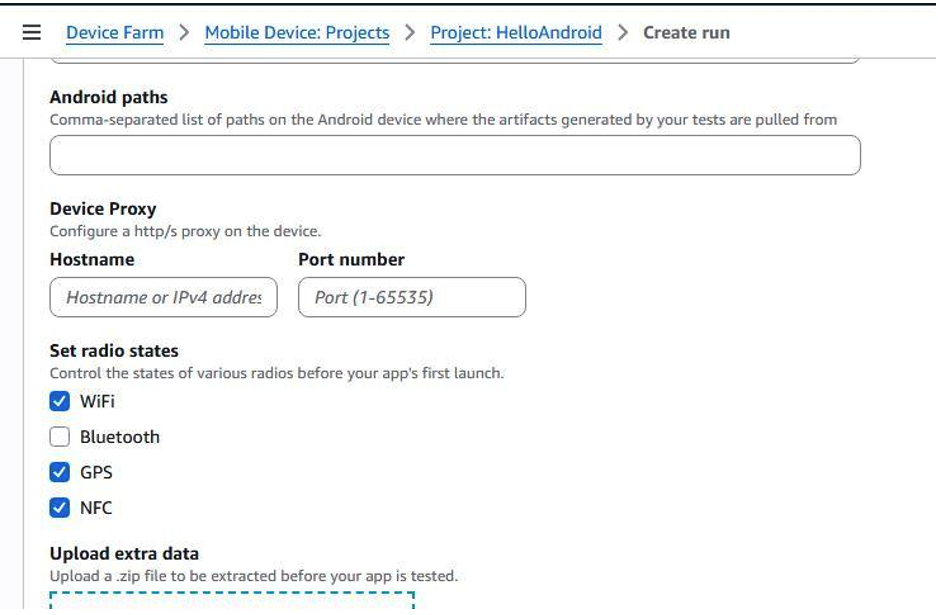
You have the option to select radio states such as WiFi, Bluetooth, etc., and even upload extra data.
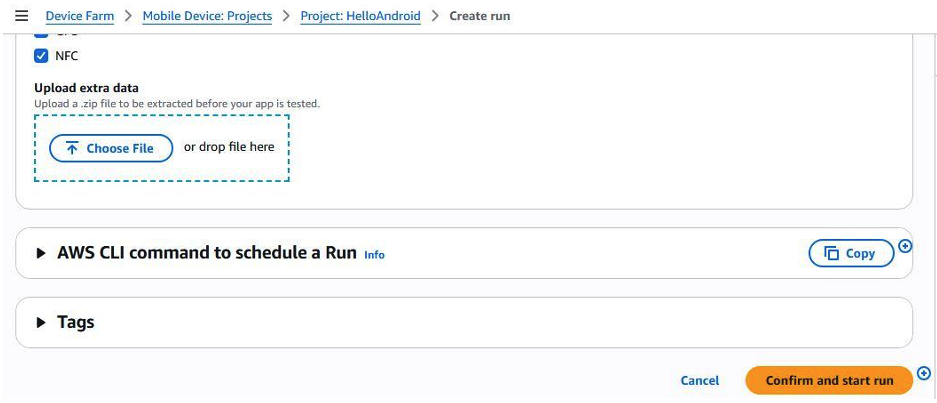
Click on Confirm and start run to start a run.
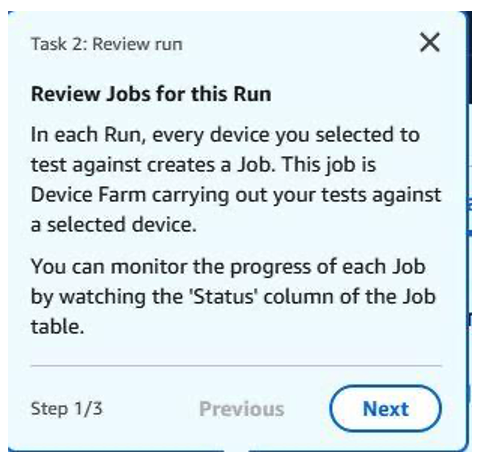
As shown in the dialog, each run creates a “Job” on every device selected for the run.
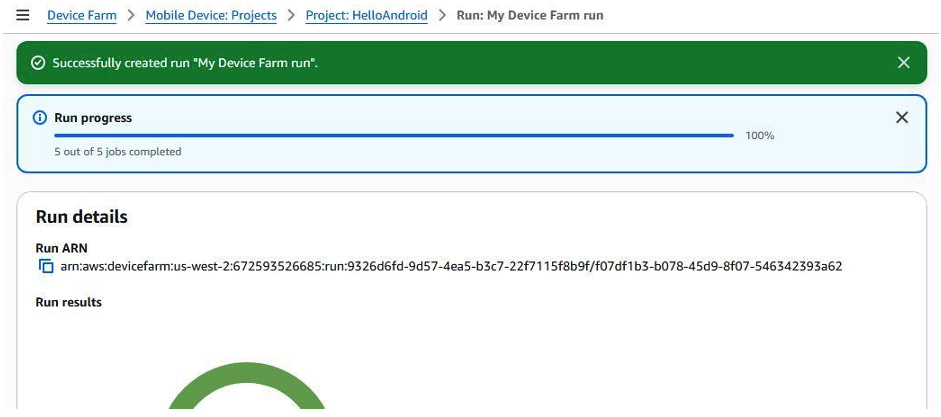
A message should indicate that a run has been created successfully.
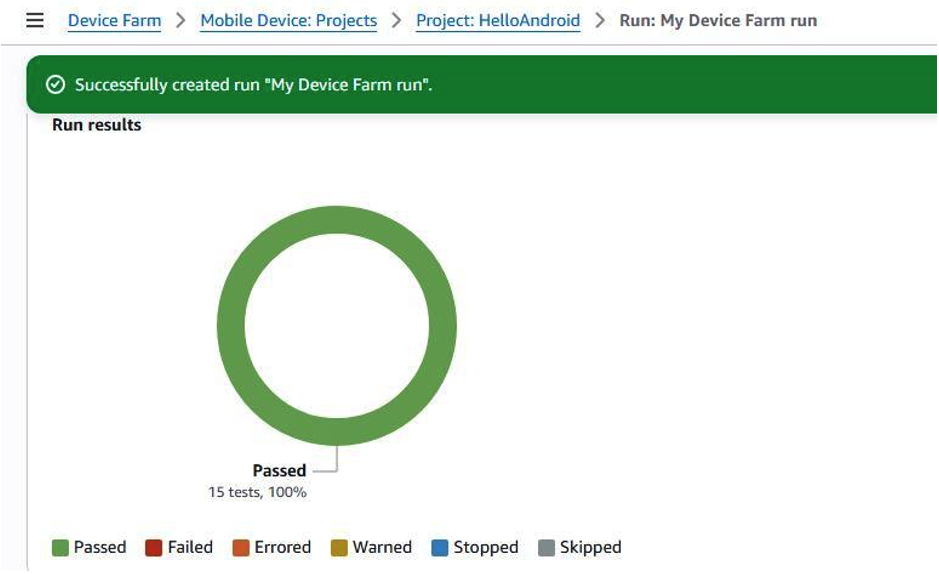
The “Run results” shows that all tests run against the devices passed.
The Jobs tab lists the specific devices on which the jobs are run, with the test results, and the total time it took.
The device Screenshots tab displays the screenshots of the devices on which the sample app is run.
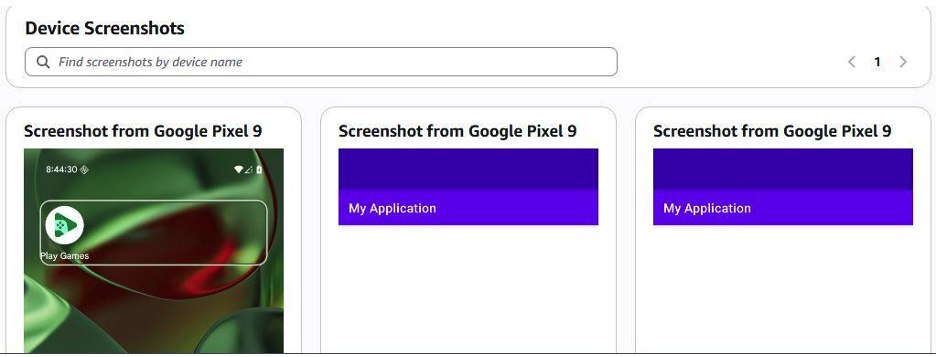
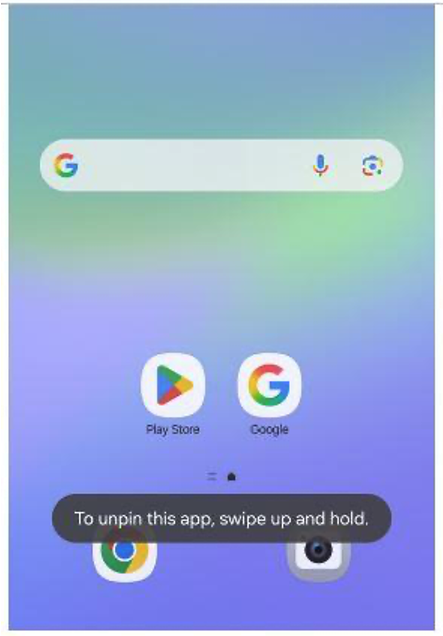
The screenshots are just that, and we can’t interact with them. At the most we can pin/unpin a screenshot.
Phase 3: Exploratory Testing
Create a Remote Access Session
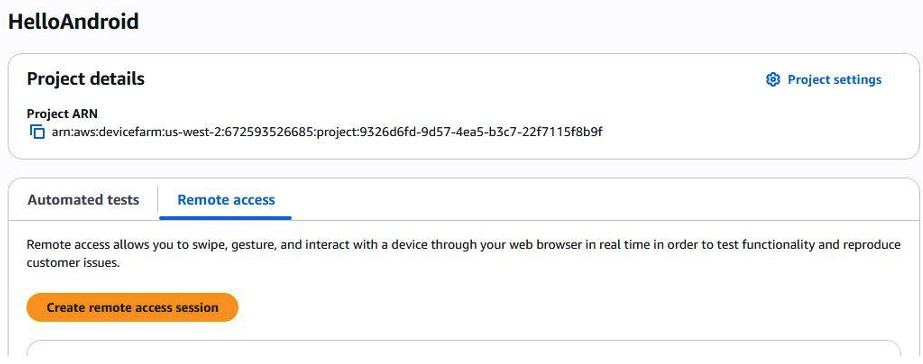
To access a device remotely and virtually interact with it, we need to start a remote access session. Click on the Remote access tab. Click the button Create remote access session.
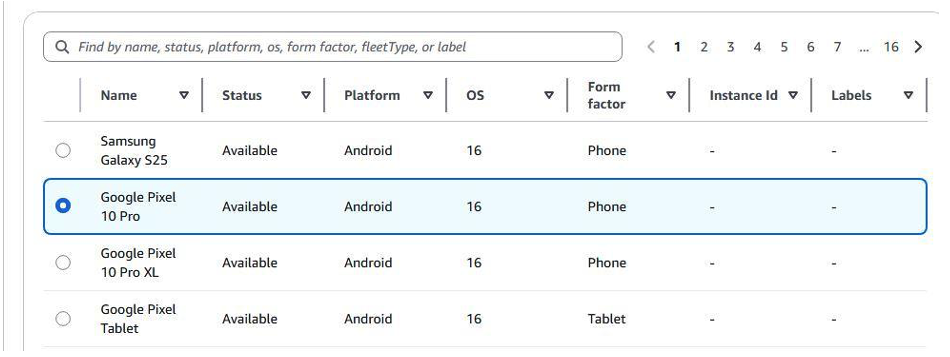
In the Create remote access session dialog, we need to select a device from the available devices.
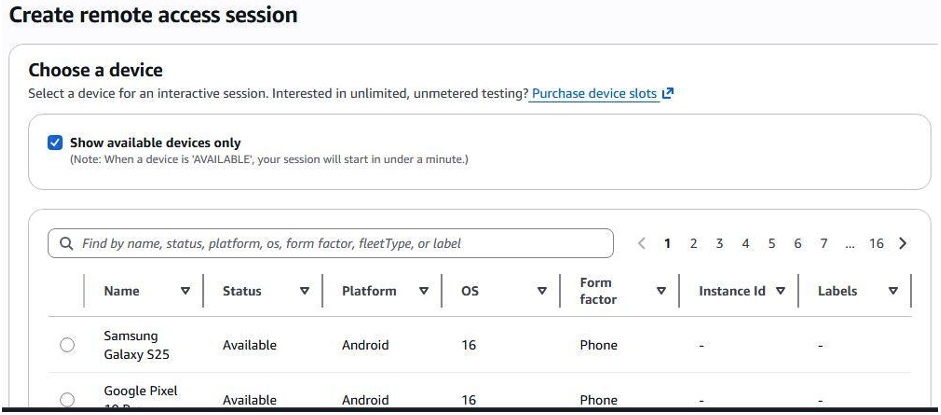
For example, select the Google Pixel 10 Pro device.
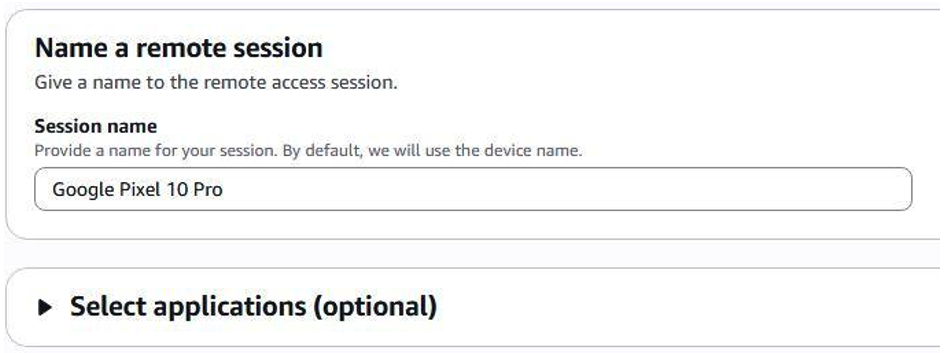
Further, name the remote session.
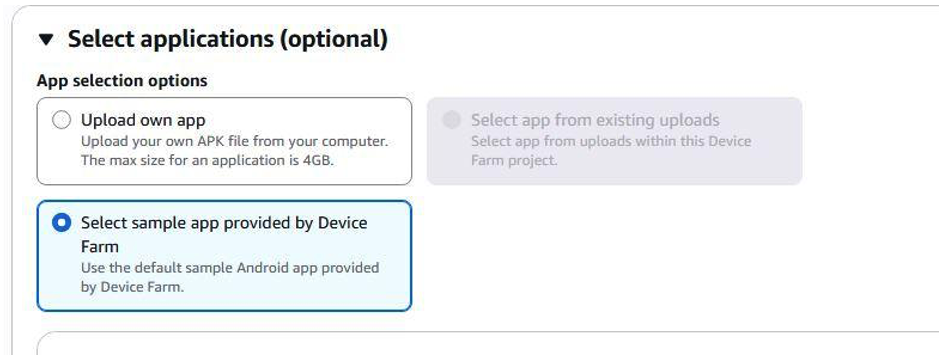
Next, select the option to use the sample app provided by the device farm. Alternatively, we can upload our own app.
Click on Confirm and start session.
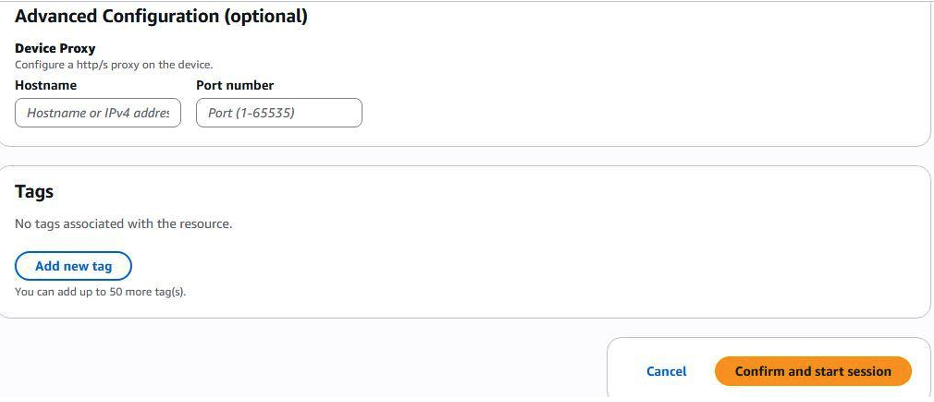
It requests the selected device from the AWS Device Farm.
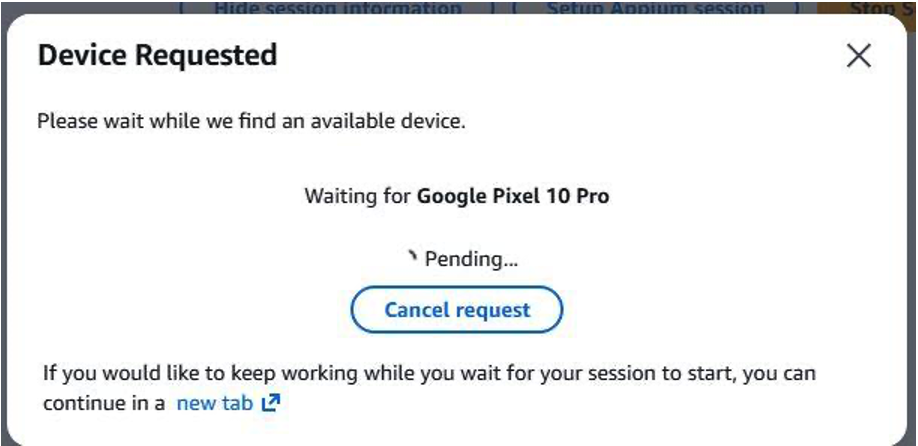
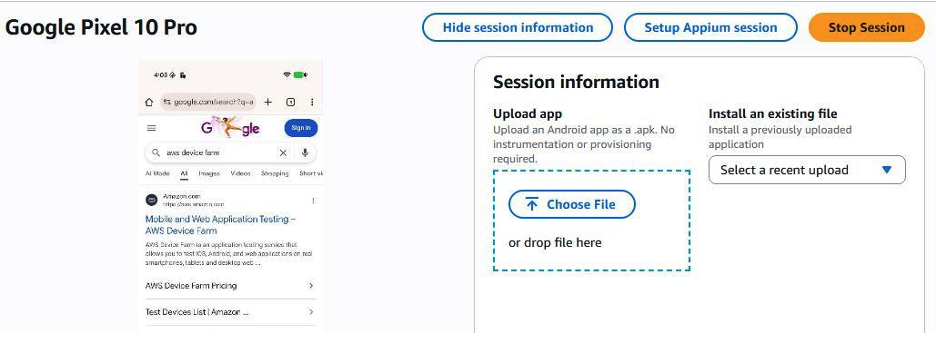
Shortly, the selected device should get selected. We have the option to upload an app to the device.
While you are interacting with the device through a web interface, it is a physical handset located in an AWS data center. Because it is remote, you cannot perform tasks requiring local hardware access, such as testing a meeting app's local audio/video bypass. You can use a device’s front/rear camera to test if a camera works; however, it may only be able to take a blurry picture of the surrounding area the device is mounted at.
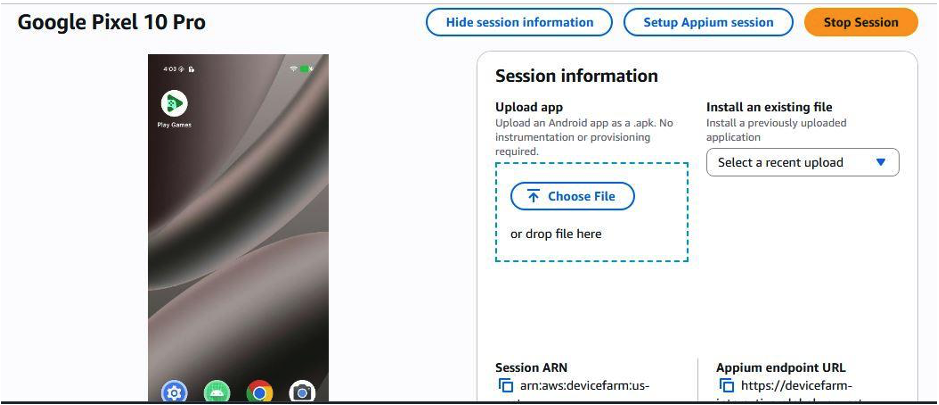
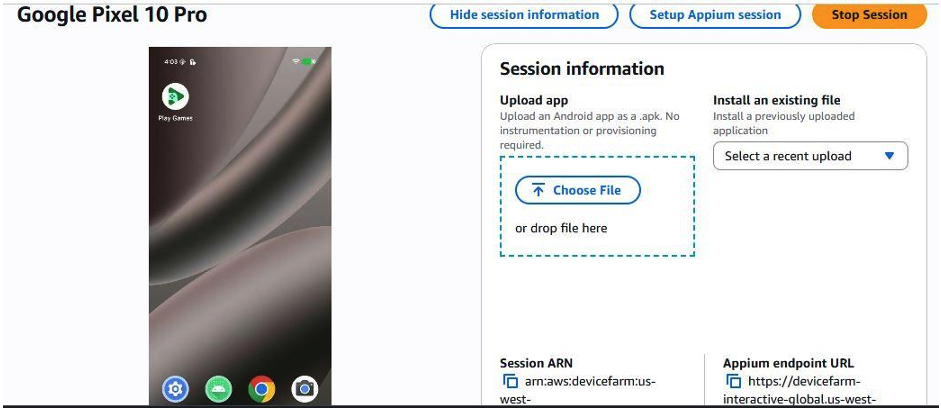
However, we can directly interact with the mobile device by clicking on the screen of the device that is displayed. The devices have Internet connectivity. For example, click the Chrome browser icon to launch the browser.
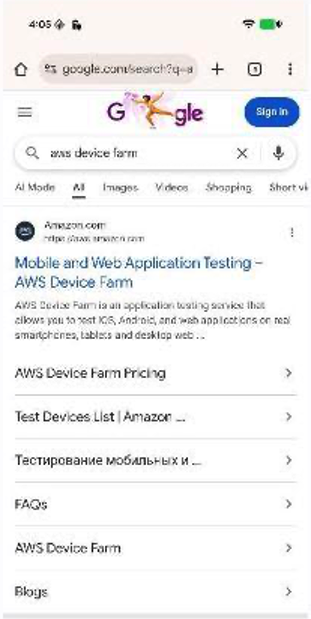
When the browser launches, we can search for information. As an example, search for “aws device farm”. The search result gets listed on the device. Note that you cannot adjust the native resolution of a screen or pixel density because these are hardware characteristics.
The devices are not associated with a phone number as a local smartphone is. This is because the devices don’t have carrier connections and can’t make a phone call or send an SMS message.
Delete a Mobile Project
We can delete a project from the Mobile Device: Projects dashboard.
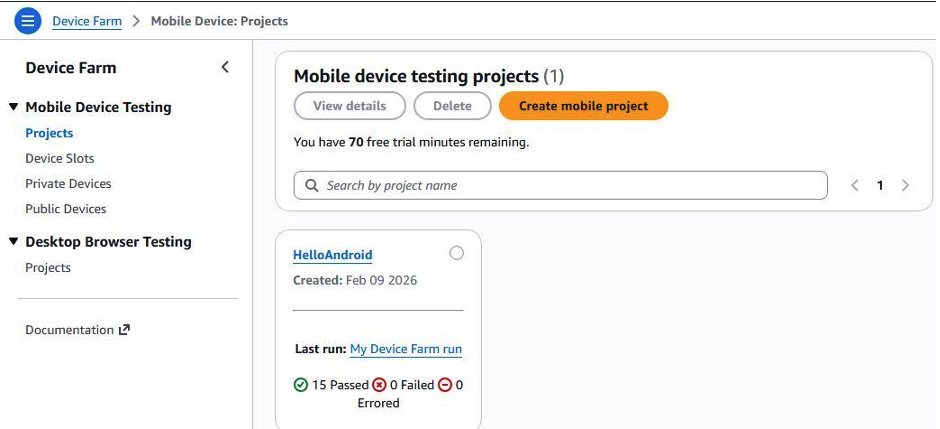
However, first we need to stop any running sessions. To stop the remote access session we started, click on Stop Session.
Afterward, we can delete the mobile project if we don’t need it any more.
Conclusion
The AWS Device Farm provides a cloud service to access remote devices of almost any type, and install apps on them, or use the default sample apps. Notably, the device is accessed remotely even though it may appear to be running on a user’s machine. A user can interact with the remote mobile device; however, a user can’t use it as one would use a smartphone mobile device directly due to the nature of remote hardware access.





Lets Hang!